Meet your Wardrobe Vault.
A place for the cosmetics you want to equip. Set up a double chest, fill it with your pieces, then find them in the cosmetics menu.
Open the double chest.
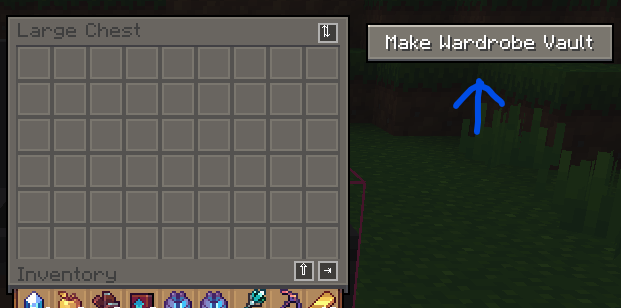
With Cosmetics & Wardrobe enabled, open your Large Chest and click Make Wardrobe Vault.
Watch the chest change.
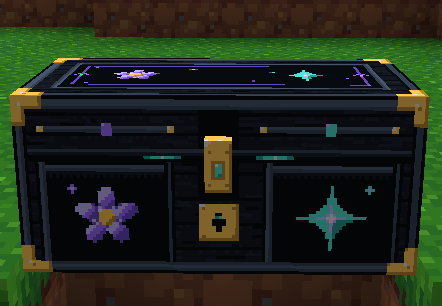
After you assign it, the double chest gets its Wardrobe Vault texture. Put the cosmetic items you want to wear inside. The chest can hold up to 54 item slots.
Other BlossomSuite clients can recognize your claimed wardrobe and block their users from opening or breaking it, or placing hoppers to pull items out. This is client-side behavior, not server-side chest protection. Other clients and server activity may still access the chest; your land claim matters.
Find what is available.
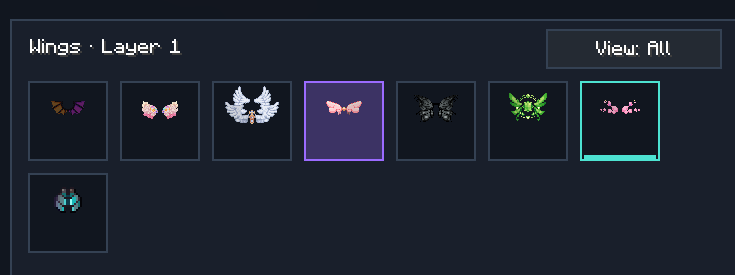
Cosmetics in your wardrobe appear as usable in the cosmetics menu. A light blue outline marks items you can use. Your collection still shows the items you have collected, and you can preview them; an item needs to be in the wardrobe before you can equip it.
For a large collection, toggle the View button between All and the available items in your wardrobe.
What does the Suite store?
Assigning a Wardrobe Vault shares its chest location and a list of usable cosmetic IDs with the Suite service so clients on the same realm can identify the vault. See the Wardrobe Vault privacy details for exactly what is stored and what happens when you unassign it.